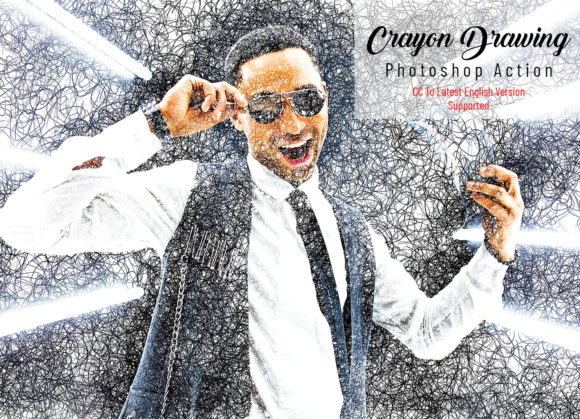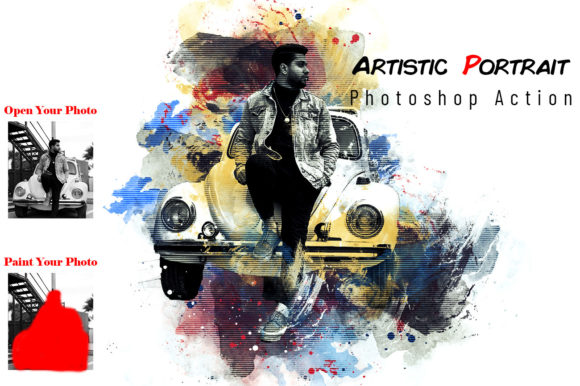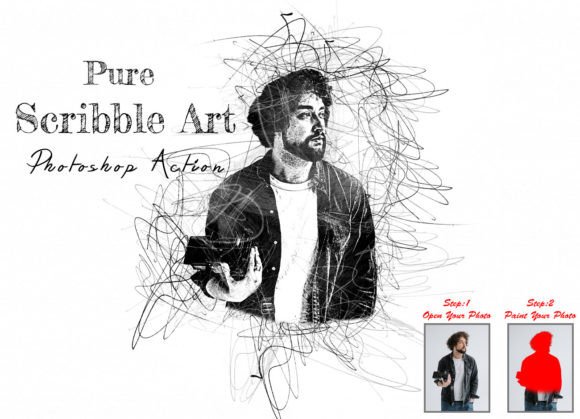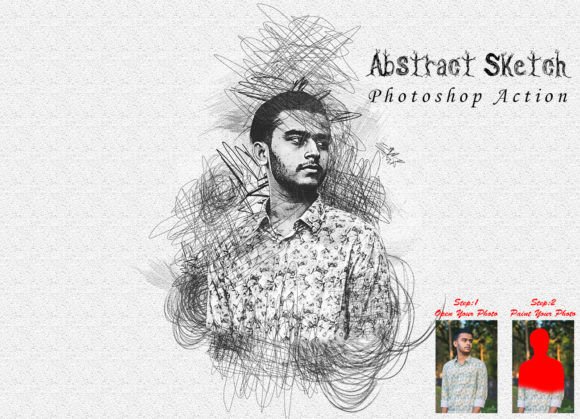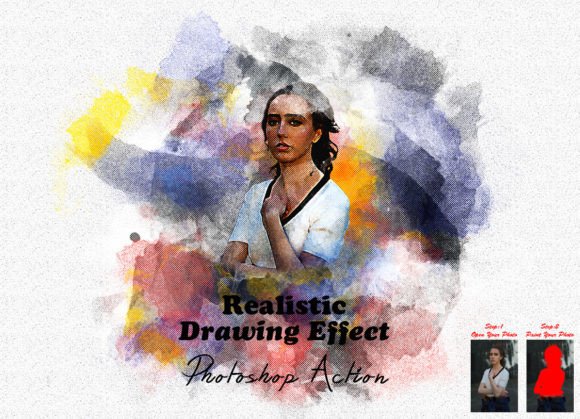
Realistic Drawing Effect Photoshop Action: Transforming Photos Into Art
There is a distinct charm to hand-drawn artwork that digital photography often struggles to replicate. The texture of pencil on paper, the deliberate stroke of charcoal, and the organic imperfections give an image a soul that raw pixels sometimes lack. For photographers, graphic designers, and content creators, bridging this gap manually can take hours of meticulous work. This is where a Realistic Drawing Effect Photoshop Action becomes an invaluable tool in your creative arsenal. It is not just about applying a filter; it is about streamlining a complex artistic process into a few clicks while maintaining high-quality, customizable results.
Why Automate the Artistic Process?
You might wonder why one would use an automated action instead of drawing from scratch or using manual brush techniques. The answer lies in efficiency and consistency. Whether you are a freelance designer working against a tight deadline or a small business owner managing your own social media presence, time is your most limited resource. A well-coded action handles the heavy lifting of layer management, blending modes, and texture application. It allows you to focus on the creative direction rather than the technical execution.
Furthermore, these actions provide a standardized look across multiple images. If you are creating a series of portraits for a website or a cohesive set of graphics for a marketing campaign, ensuring that every image has the same artistic weight and style is crucial. Manual drawing can lead to inconsistencies, but a Realistic Drawing Effect Photoshop Action ensures that the underlying structure of the effect remains uniform, even as you tweak individual elements.
Who Benefits Most From This Tool?
The utility of this tool extends far beyond professional digital artists. Here is how different users can leverage this technology in their daily workflows:
- Photographers: Offer unique add-on services to clients by providing "sketch-style" versions of wedding or portrait photos. It adds value to your package without requiring you to learn traditional drawing skills.
- Social Media Managers: Stand out in crowded feeds. A photo converted into a realistic pencil sketch stops the scroll because it looks different from the standard high-definition images everyone else is posting.
- Educators and Bloggers: Use sketched images in tutorials or articles to soften the visual impact. Sketches often feel more approachable and less intimidating than stark photographs, making them perfect for educational materials.
- Small Business Owners: Create unique product visuals. If you sell handmade goods, presenting them with a drawing effect can emphasize the artisanal nature of your brand.
Understanding the Technical Requirements
Before diving into the creative possibilities, it is essential to understand the technical groundwork. This specific Realistic Drawing Effect Photoshop Action is designed for reliability and ease of use, but it requires precise setup to function correctly. It has been tested and verified to work seamlessly on Photoshop CC2022 English Version. However, its compatibility is broad, supporting versions CS6, CC2014, CC2015, CC2015.5, CC2016, CC2017, CC2018, CC2019, CC2020, CC2021, and CC2022. This wide range ensures that you do not need the latest hardware or software subscription to achieve professional results.
One critical aspect that users often overlook is image preparation. The quality of the output is directly tied to the input. To get the best result, you must resize your image before running the action. The recommended dimensions are specific: select the crop tool, look for the W x H x Resolution boxes in the top menu bar, and enter 3000px for width, 2000px for height, and a resolution of 72. Press enter to apply. This step ensures that the action’s brushes and filters scale correctly to your image, preventing pixelation or blurry details.
Step-by-Step Workflow for Best Results
Using the action is straightforward, but following the correct sequence is vital for the "realistic" aspect of the effect. Here is how the process typically unfolds:
- Prepare Your Canvas: As mentioned, resize your image to 3000x2000px at 72 DPI. This standardization helps the action perform consistently.
- Create the Paint Layer: Open your photo and create a new layer. Rename this layer “paint” in lowercase letters. This naming convention is crucial because the action looks for this specific label to apply effects correctly.
- Add Manual Touches: Select a brush and paint over areas of the image you want to highlight or modify. This step allows for personalization. You might want to emphasize certain features or hide distractions. Once done, close the eye icon on the paint layer to hide it, but keep the layer selected.
- Execute the Action: Click the play button on the action panel. The script will now process the image, utilizing the hidden paint layer data to generate the drawing effect.
This workflow highlights the balance between automation and control. While the action does the heavy lifting, the "paint" layer gives you the agency to influence the final outcome, ensuring the result feels unique rather than generic.
What Is Included in the Package?
When you acquire this tool, you are not just getting a single script file. The package is designed to be comprehensive, ensuring that users of all skill levels can succeed. It includes the primary ATN file (the Photoshop Action itself), a set of specialized brushes tailored for the effect, and a masking option that allows for further refinement.
For those who prefer visual learning, a video tutorial link is provided within the help file. Additionally, a PDF user guide offers written instructions for quick reference. The layers generated by the action are organized logically, making it easy to customize colors, contrast, or intensity after the action has run. This ease of customization is what separates a basic filter from a professional-grade tool.
Practical Considerations Before You Start
While the promise of instant art is appealing, it is important to manage expectations. Not every photograph translates well into a sketch. Images with high contrast and clear subjects tend to produce the most striking results. Busy backgrounds or low-light photos may require additional manual masking or adjustment before running the action.
Also, consider the end-use of your image. If you are printing large formats, ensure your source image is high enough resolution before resizing to the action's recommended dimensions. While the action works on every photo, the "awesome look" mentioned in its description is best achieved when the source material is sharp and well-lit.
Ultimately, a Realistic Drawing Effect Photoshop Action is more than a shortcut; it is a creative catalyst. It lowers the barrier to entry for artistic effects, allowing photographers and designers to experiment with styles they might otherwise avoid due to time constraints or lack of traditional drawing skills. By integrating this tool into your workflow, you open up new avenues for visual storytelling, client offerings, and personal expression.