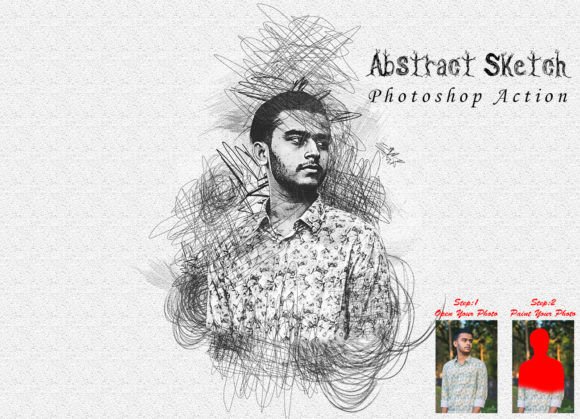
Transform Photos with Abstract Sketch Action
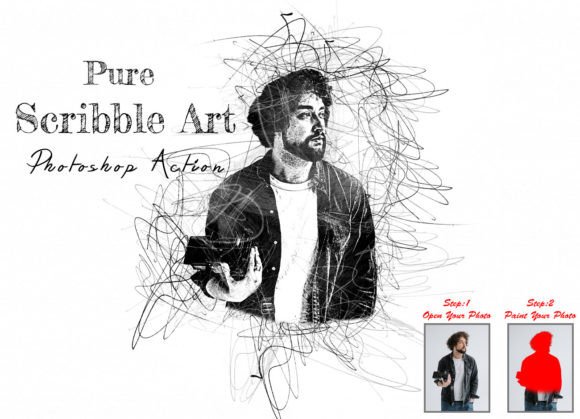
Creating hand-drawn artwork from digital photographs used to require hours of meticulous work, steady hands, and advanced artistic skills. Today, creative tools have evolved to bridge the gap between photography and illustration, allowing users to achieve stunning visual effects in seconds. The Abstract Sketch Photoshop Action is a prime example of this technological convenience. It is designed specifically for photographers, graphic designers, and digital artists who want to add a unique, artistic flair to their images without starting from scratch. By automating complex layering and blending processes, this tool transforms standard photos into eye-catching sketches that look professionally crafted.
Why Choose an Automated Sketch Effect?
The primary appeal of using an action like this lies in efficiency and consistency. Manually converting a photo into a sketch involves multiple steps: desaturating colors, duplicating layers, applying filters such as Gaussian Blur, changing blending modes to Color Dodge or Multiply, and adjusting levels. While educational, this process is time-consuming when you have a deadline or a batch of images to process. The Abstract Sketch Photoshop Action condenses these intricate steps into a single click. This allows creators to focus more on composition and storytelling rather than technical execution.
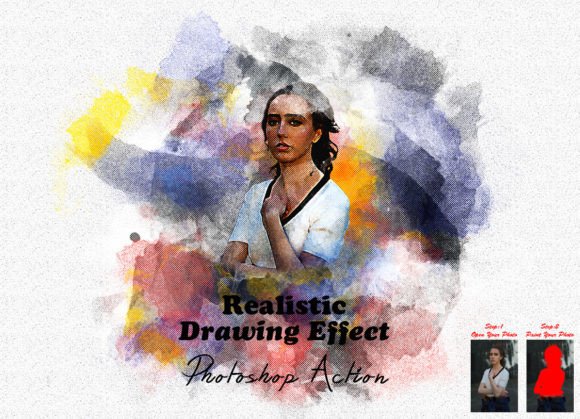
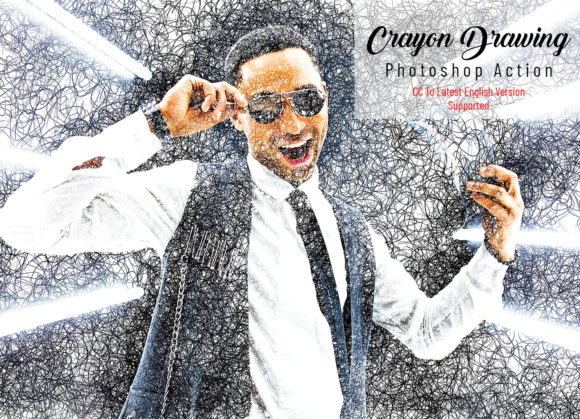
Furthermore, this tool offers versatility through its built-in variations. Unlike basic filters that apply a one-size-fits-all effect, this action includes 10 different color options. This feature is crucial for maintaining brand consistency or matching the mood of a specific project. Whether you need a stark black-and-white pencil look for a formal portfolio or a vibrant, colorful sketch for social media content, the variety ensures that the final output aligns with your creative vision. The result is an image that feels enhanced and beautiful, offering a unique and awesome look that stands out in crowded digital feeds.
Ideal Use Cases for Digital Artists and Marketers
Understanding where to apply this effect can significantly boost its value. For photographers, it provides a way to offer additional services to clients. Wedding photographers, for instance, can offer artistic sketch versions of couple portraits as premium add-ons. These stylized images often serve as memorable keepsakes or unique wall art. Similarly, fashion photographers can use the abstract sketch effect to create editorial-style layouts that emphasize texture and form over realistic detail.
Graphic designers and marketers will find this action invaluable for creating engaging visual content. In advertising, breaking the monotony of high-resolution photography with illustrated elements can capture audience attention. You might use the sketch effect for product backgrounds, website banners, or email newsletter headers. It adds a human, handcrafted touch to digital campaigns, which can make brands feel more approachable and authentic. Bloggers and content creators can also use these visuals to break up text-heavy articles, making their posts more visually appealing and shareable.
Educators and presenters can leverage this tool to create distinctive visuals for slideshows or instructional materials. Turning a standard stock photo into a sketch can help illustrate concepts without the distraction of realistic details, focusing the viewer’s attention on the subject matter. It is a practical solution for anyone looking to elevate their visual communication with minimal effort.
Technical Compatibility and Requirements
Before diving into the creative process, it is essential to ensure your software environment is compatible. The Abstract Sketch Photoshop Action has been rigorously tested to ensure stability and performance. It works seamlessly with the English version of Photoshop CC2022. However, its compatibility extends back several years, supporting versions including CS6, CC2014, CC2015, CC2015.5, CC2016, CC2017, CC2018, CC2019, CC2020, and CC2021. This broad support means that even users who have not upgraded to the latest software can still benefit from this tool.
It is important to note that actions are sensitive to file settings. To achieve the best results, specific preparation steps are required. Ignoring these prerequisites can lead to distorted outputs or errors during the playback of the action. Therefore, understanding the correct workflow is just as important as having the software installed.
Step-by-Step Guide to Best Results
To get the most out of this tool, follow these precise instructions. Proper setup ensures that the algorithm within the action interprets your image correctly, resulting in a clean and professional sketch.
- Prepare Your Image Dimensions: Start by opening your chosen image in Photoshop. The action is optimized for specific resolutions. Select the Crop Tool from the toolbar. In the top menu bar, locate the fields for Width, Height, and Resolution. Enter 3000px for Width, 2000px for Height, and set the Resolution to 72. This standardization helps maintain the proportion and quality of the sketch effect.
- Expand the Canvas: For the best aesthetic outcome, you should expand the space around your photo. With the Crop Tool still selected, drag the handles outward to add empty space around all sides of your image. Press Enter to confirm the crop. This extra breathing room prevents the sketch lines from being cut off at the edges and creates a more balanced composition.
- Create the Paint Layer: Open your photo and create a new layer. It is critical that you rename this layer to "paint" in lowercase letters. The action is programmed to look for this specific name. If the name differs, the action may fail to execute correctly.
- Apply Brush Strokes: Select a brush from the included brushes file or your default library. Paint over the areas of the image you want to highlight or transform. You do not need to be perfect; loose, expressive strokes often yield better abstract results. Once you are satisfied, hide the visibility of the "paint" layer by clicking the eye icon, but keep the layer selected.
- Run the Action: Open the Actions panel, select the Abstract Sketch Photoshop Action, and click the play button. The software will automatically process the image, applying the sketch effect based on your underlying photo and the hidden paint layer.
What Is Included in the Package?
When you download this resource, you receive a comprehensive kit designed to support your creative workflow. The package includes the .ATN file, which is the core Photoshop Action file. It also comes with a specialized Brushes File tailored to work harmoniously with the action’s algorithms. As mentioned, there are 10 color options available, allowing you to toggle through different styles until you find the perfect match. Additionally, a Help file is included to guide you through any troubleshooting or advanced customization questions.
By integrating the Abstract Sketch Photoshop Action into your toolkit, you gain the ability to produce high-quality, artistic imagery rapidly. It empowers beginners to achieve professional-level results while saving experienced designers valuable time. Whether for personal projects, client work, or commercial marketing, this tool offers a reliable and stylish solution for transforming ordinary photos into extraordinary art.