Grass Photoshop Action: A Practical Guide to Fast, Natural Textures for Designers
In the fast-paced world of digital design, efficiency often dictates the quality of the final output. Designers frequently face the challenge of creating organic, textured effects—such as realistic grass overlays on typography or logos—without spending hours manually painting individual blades. This is where specialized automation tools come into play. The Grass Photoshop Action represents a specific category of productivity assets designed to bridge the gap between complex manual editing and instant visual results. By understanding how this tool functions, its distinct advantages, and its limitations compared to traditional methods, designers can make informed decisions about integrating it into their workflow.
Understanding the Mechanics of Automated Texture Application
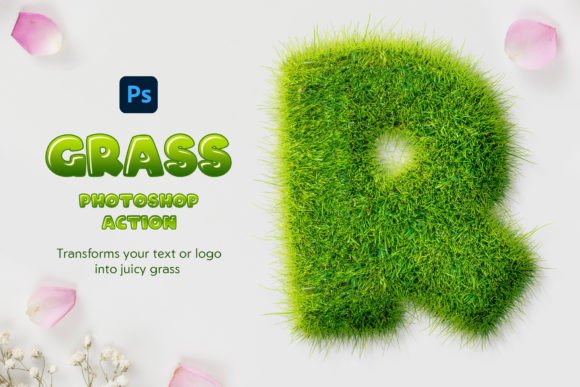
At its core, the Grass Photoshop Action is a recorded sequence of commands within Adobe Photoshop that automates the application of grass textures onto various elements. Unlike standard filters that apply a uniform effect across an entire canvas, this action is designed to interact intelligently with specific layers. Whether you are working with text, a vector shape, a logo, or a grouped layer, the action analyzes the transparency and boundaries of the selected object to generate a realistic grassy overlay.
The process is notably streamlined. Users simply select the desired layer or group and execute the action by clicking "Play." Within seconds, the software generates a complex composition of grass blades, shadows, and depth. This speed is particularly valuable for professionals who need to iterate quickly on concepts or deliver projects under tight deadlines. The inclusion of sixteen different variations—comprising four distinct grass types and four color options for each type—provides a reasonable degree of flexibility without overwhelming the user with excessive choices.
Comparing Automated Actions vs. Manual Techniques
To evaluate the true value of the Grass Photoshop Action, it is essential to compare it against traditional manual methods. Creating realistic grass effects manually involves several labor-intensive steps: selecting appropriate brushes, masking edges to ensure clean transitions, painting individual highlights and shadows, and adjusting blending modes to achieve natural integration. For a senior artist, this process might take thirty minutes to an hour per element. For a beginner, it could take significantly longer and still yield inconsistent results.
In contrast, the automated action reduces this timeframe to mere seconds. However, this efficiency comes with tradeoffs. Manual creation offers unlimited control over every blade of grass, allowing for hyper-realistic customization that matches specific lighting conditions or artistic visions. The Grass Photoshop Action, while highly versatile, operates within predefined parameters. It is ideal for projects requiring a stylized, fresh, or summer-themed aesthetic but may lack the granular control needed for photorealistic architectural visualizations or high-end commercial photography retouching.
When Automation Is the Superior Choice
The Grass Photoshop Action shines in scenarios where speed and consistency are prioritized over minute artistic control. Consider a social media campaign requiring ten different variations of a brand logo with a nature-inspired theme. Using manual techniques, maintaining consistent texture density and shadow direction across all ten images would be challenging and time-consuming. With the action, the designer can apply the same settings repeatedly, ensuring a cohesive look across the entire campaign. Additionally, the ability to play the action multiple times on the same PSD project allows for rapid experimentation. If the first result does not perfectly align with the vision, the user can undo and replay the action with different settings until the desired outcome is achieved.
Evaluating Flexibility and Customization Options
A common concern with automated tools is their rigidity. Does the Grass Photoshop Action offer enough room for adjustment? The answer lies in its built-in variables. The tool provides options to adjust the shadow angle, which is crucial for matching the lighting of the underlying image. Furthermore, the availability of four grass types and four color variants means that users are not locked into a single aesthetic. Whether the project calls for vibrant, juicy green spring grass or a more muted, autumnal tone, the action provides a solid starting point.
Another significant advantage is its compatibility with multilingual Photoshop interfaces. Many scripts and actions fail when used in non-English versions of the software due to hardcoded layer names or menu commands. This action is designed to function correctly regardless of the interface language, making it a reliable resource for international teams or freelancers working with diverse client bases. This technical robustness reduces friction and prevents the frustration of troubleshooting broken scripts.
Integration into Professional Workflows
For designers considering this tool, understanding what is included in the package is vital for assessing its immediate utility. The Grass Photoshop Action typically comes as a comprehensive kit including the ANT file (the action itself), PAT files for patterns, ABR files for custom brushes, and a PSD template for easy initiation. The inclusion of a PDF help file ensures that even users unfamiliar with installing actions can get started quickly.
The versatility of input layers further enhances its practicality. It works not only with rasterized text but also with vector shapes and layer groups. This means designers can maintain non-destructive workflows up until the point of applying the effect. For example, a designer can create a complex logo using multiple vector shapes, group them, and then apply the grass effect to the entire group. This preserves the editability of the original design while adding the textured overlay efficiently.
Limitations and Considerations for Potential Users
While the benefits are clear, it is important to acknowledge where this tool may fall short. The "juicy green" aesthetic, while appealing for summer vibes and eco-friendly branding, may not suit every project. Corporate designs requiring sterile, minimalistic, or industrial looks will likely find the grass texture inappropriate. Additionally, because the action relies on pre-set brushes and patterns, the resulting texture may appear repetitive if examined closely at high magnifications. For large-format prints such as billboards, designers may need to supplement the action with manual detailing to break up patterns and add unique imperfections.
Furthermore, users must have a foundational understanding of Photoshop layers and masking to get the best results. While the action automates the texture application, post-processing adjustments—such as tweaking opacity, adjusting color balance, or refining masks—are often necessary to blend the effect seamlessly with background images. The tool is a powerful accelerator, not a complete replacement for design judgment.
Making the Right Decision for Your Projects
Choosing whether to incorporate the Grass Photoshop Action into your toolkit depends on your specific needs and workflow constraints. If you frequently create seasonal graphics, nature-themed advertisements, or playful typography, this tool offers an undeniable return on investment through time savings. It allows designers to produce high-quality, visually engaging content without the steep learning curve associated with advanced digital painting techniques.
However, if your work primarily involves high-end retouching, photorealism, or highly customized artistic illustrations, you may find the predefined nature of the action limiting. In such cases, investing time in mastering custom brush creation and manual masking techniques might yield better long-term results. For most generalist designers, marketers, and small business owners, though, the balance of speed, ease of use, and visual impact makes the Grass Photoshop Action a compelling resource. It transforms a potentially tedious task into a simple click, freeing up creative energy for other aspects of the design process.
Ultimately, the value of this tool lies in its ability to democratize complex texturing effects. By lowering the barrier to entry for creating organic, natural-looking designs, it empowers a broader range of creators to produce professional-grade visuals. Whether you are looking to refresh a brand identity with a summer vibe or simply want to experiment with new textual styles, understanding the capabilities and constraints of this action will help you leverage it effectively in your creative endeavors.