Emboss Effect Photoshop Action Guide
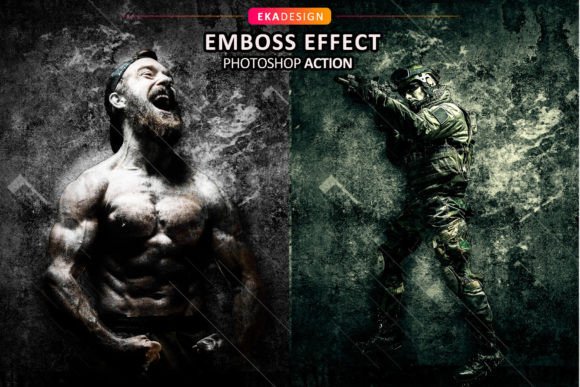
Transforming a flat, two-dimensional photograph into a textured, tactile masterpiece usually requires hours of manual labor. You might spend time adjusting bevels, managing complex layer styles, and tweaking lighting angles to get that perfect raised look. However, modern digital workflows demand efficiency without sacrificing quality. This is where the Emboss Effect Photoshop Action becomes an indispensable tool for creators who value their time. By automating the most tedious parts of the texturing process, this tool allows you to create highly detailed, professional-grade embossed visuals with just a couple of clicks.
The primary appeal of this action lies in its ability to bridge the gap between amateur editing and professional design output. Whether you are a small business owner creating product mockups, a blogger designing featured images, or a freelance graphic designer handling multiple client projects, consistency and speed are vital. This action is designed to save you an immense amount of work per photo, ensuring that your workflow remains smooth and your deadlines are met without stress.
Understanding the Value of Automated Texturing
At its core, an emboss effect simulates the appearance of raised or recessed surfaces on a digital image. It plays with light and shadow to trick the eye into perceiving depth. Doing this manually involves a deep understanding of lighting physics and advanced knowledge of Photoshop’s layer blending options. For beginners, this learning curve can be steep and frustrating. For professionals, repeating this process for dozens of images is simply inefficient.
The Emboss Effect Photoshop Action simplifies this by recording these complex steps into a single executable file. When you run the action, it automatically applies the necessary filters, adjusts the contrast, and sets up the lighting effects. The result is a sophisticated texture that looks like it was carved or pressed into paper, leather, or metal. This capability is particularly valuable for those who need to produce high-volume content. Imagine needing to create branded social media posts for a week’s worth of content; using this action reduces the editing time for each image from twenty minutes to under thirty seconds.
Ideal Use Cases for Creators and Businesses
The versatility of this tool extends across various industries and creative pursuits. Here are some practical scenarios where this action shines:
- Product Branding: Small business owners can apply the effect to logos or packaging designs to give them a premium, tangible feel in digital advertisements.
- Print Design: Graphic designers preparing materials for print can use the action to visualize how an embossed business card or invitation might look before sending it to the printer.
- Social Media Content: Influencers and marketers can add depth to quote graphics or announcement posts, making them stand out in crowded feeds.
- Educational Materials: Educators creating engaging visual aids can use textured backgrounds to make worksheets or presentation slides more visually appealing.
Each of these applications benefits from the consistent quality the action provides. Unlike manual edits, which can vary depending on the user’s mood or skill level on a given day, the action delivers a uniform result every time.
Technical Requirements and Compatibility
Before diving into the creative possibilities, it is essential to understand the technical framework required to run this tool effectively. The Emboss Effect Photoshop Action is compatible with a wide range of Adobe Photoshop versions, including CS4, CS5, CS6, CC, CC2014, CC2015, CC2017, CC2018, CC2020, and CC2021. This broad compatibility ensures that users with older hardware or software subscriptions can still benefit from the tool.
However, there is one critical restriction: the action only works with the English version of Photoshop. If your software interface is set to French, German, Spanish, or any other language, the action will likely fail because it relies on specific layer names and menu commands that differ across languages. Fortunately, this is not a permanent barrier. If you currently use a different language, you can easily switch your Photoshop interface to English. Many video tutorials are available online that guide you through changing the language preference in the Creative Cloud desktop app or within Photoshop’s preferences menu. Taking this small step ensures seamless operation.
Best Practices for Optimal Results
To get the best possible outcome out of the Photoshop Action, the quality of your input material matters significantly. While the action is powerful, it cannot create detail that isn’t there. Therefore, you should use high-resolution images as your starting point. The recommended resolution is 3000px by 3500px at 300 DPI. Using images of this caliber ensures that the embossed details remain sharp and crisp, even when viewed on high-definition screens or printed.
Low-resolution images may result in pixelated edges or muddy textures when the emboss filters are applied. If you are working with smaller images, consider upscaling them using Photoshop’s native preservation tools before running the action, though starting with a high-quality source is always the superior approach.
Layer Organization and Customization
One of the standout features of this tool is its intelligent layer management. Many automated actions leave behind a messy stack of merged layers that are difficult to edit later. In contrast, the Emboss Effect Photoshop Action keeps layers organized. This structure is crucial for further customization. After running the action, you will find separate groups for shadows, highlights, and base textures.
This organization allows you to tweak the intensity of the effect without starting over. For instance, if the shadows appear too harsh, you can simply lower the opacity of the shadow layer. If you want to change the color tone, you can adjust the adjustment layers included in the group. This flexibility means the action serves as a strong foundation rather than a rigid final product, empowering you to customize the image further to match your specific brand aesthetic.
What Is Included in the Package
When you acquire this tool, you receive a comprehensive set of assets designed to support your workflow. The package includes:
- Brushes (ABR): Custom brushes that can help refine edges or add additional texture details manually if needed.
- Action File (ATN): The core file that performs the automated embossing process.
- Patterns (PAT): Pre-made patterns that can be used to enhance the texture or background of your design.
- Help File (Notepad): A simple text document containing instructions and tips for installation and usage.
It is important to note that preview images and mockup scenes are not included in the download. These are typically used for marketing purposes to demonstrate the potential of the action. Your focus should be on applying the action to your own unique photography and designs.
In summary, the Emboss Effect Photoshop Action is a practical solution for anyone looking to elevate their visual content with minimal effort. By combining ease of use with professional-grade results, it supports a wide array of creative goals. Just remember to use high-resolution sources, ensure your Photoshop is in English, and take advantage of the organized layers to fine-tune your final masterpiece.